
Local AI (Built-in Engine)
Return ships with its own local AI engine. There is nothing to install, no separate app to run, and no account required - the engine starts automatically with Return and runs entirely on your Mac. Your documents never leave your computer in Local mode.
How it works
The engine is bundled inside Return and based on llama.cpp, an open-source inference runtime. It has no networking code for remote AI providers, so locality isn’t a setting that could silently change - it’s how the engine is built. The only time Return touches the network in Local mode is when you download a model.
Two things run locally:
- Chat model - powers chat, document analysis, and Returns.
- Embedding model - powers semantic search across your documents (see Semantic Search).
Getting a model
- Open Settings → Models.
- Pick a model from Available models - plain-language descriptions, exact sizes, and a memory dot showing how comfortably each model runs on this Mac. One model carries a quiet Recommended for this Mac label - the best fit for your machine’s memory; models too large for your Mac stay listed with the memory they would need.
- Click Download. When it finishes, the model appears under On this Mac and is ready to use.
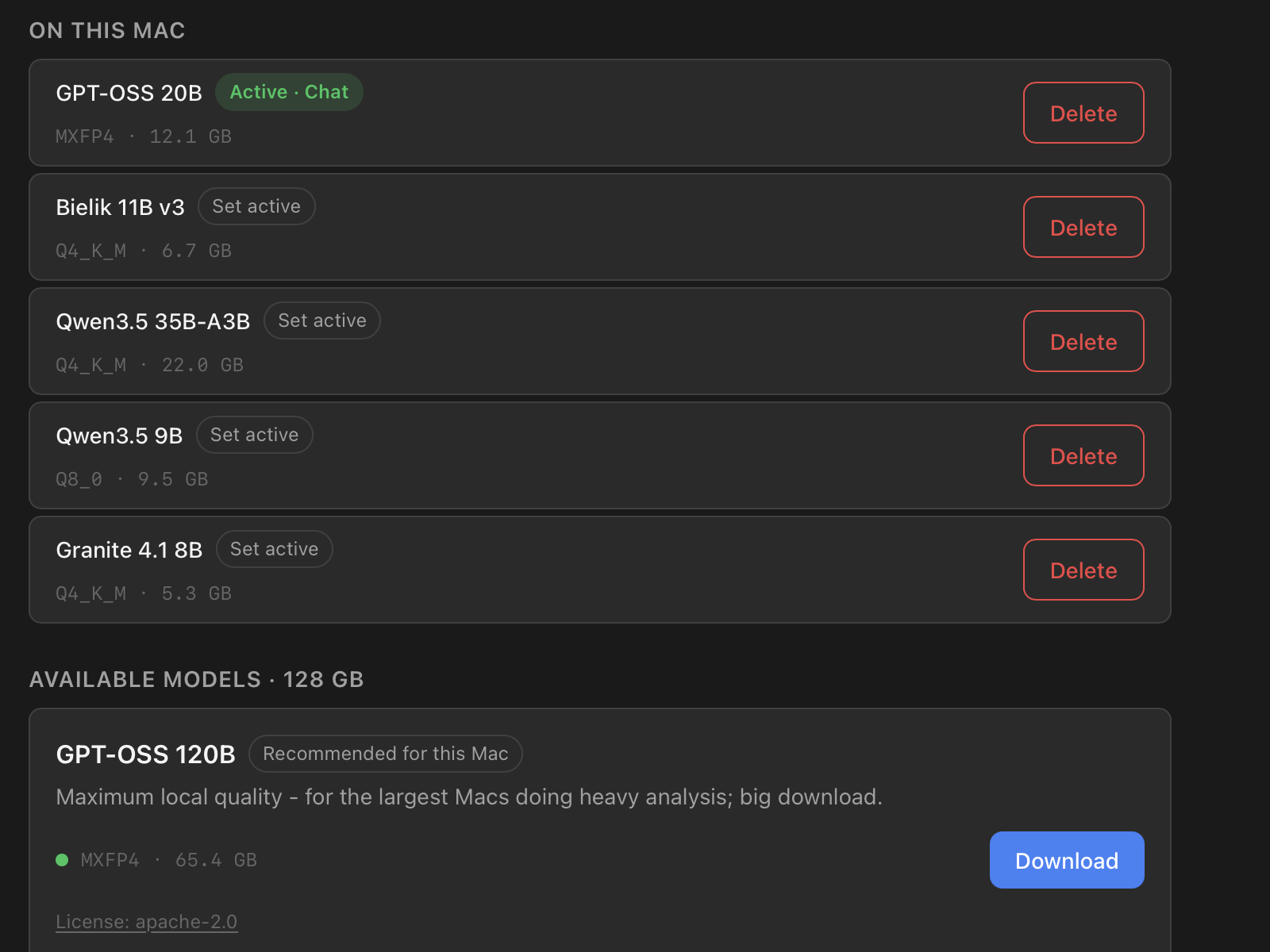
The available models are curated by Return: tested for document work, with clear licenses, including Polish-first options (Bielik) for Polish legal and formal language.
Browsing more models
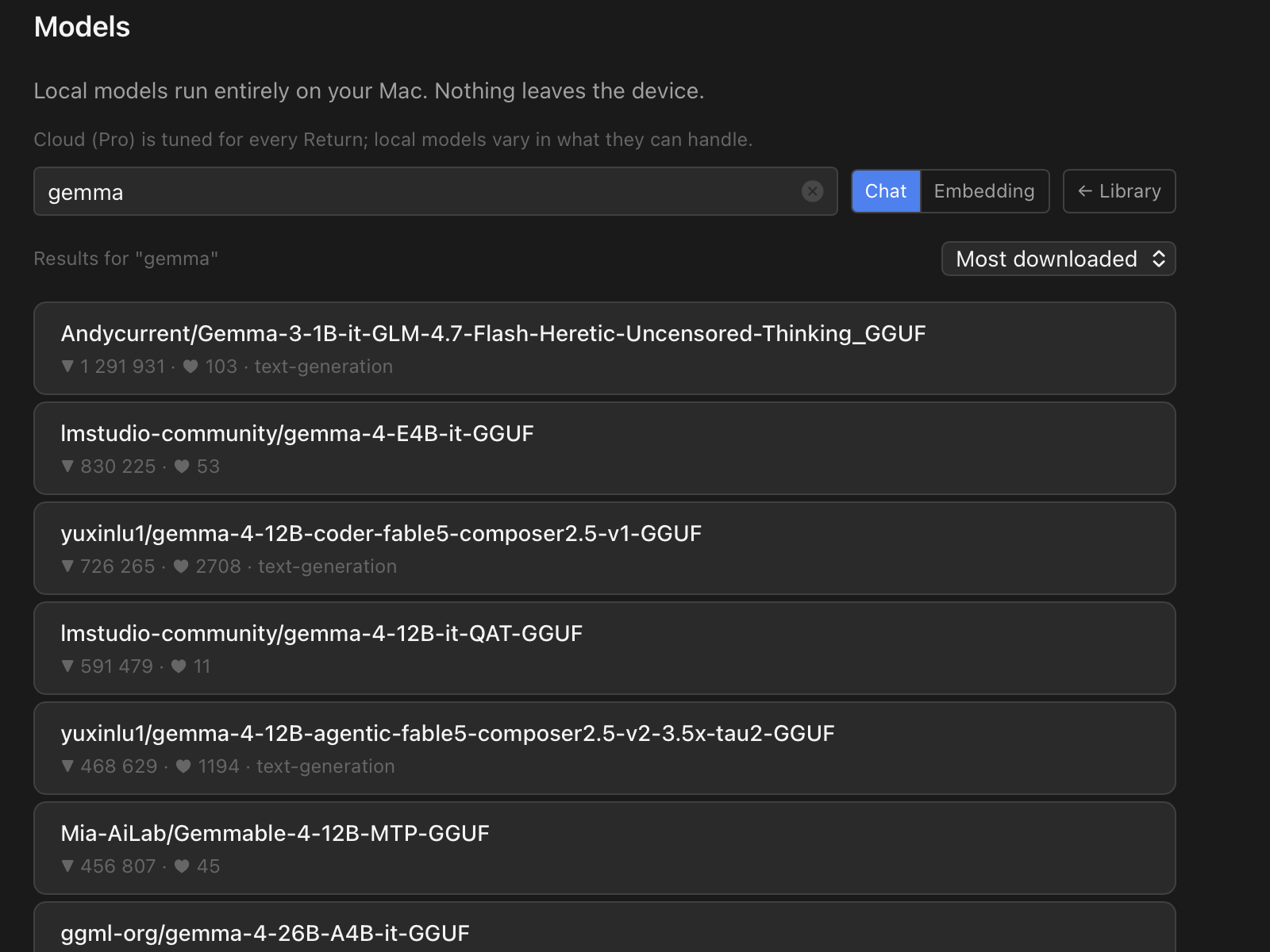
Power users can go beyond the curated list: type in the search field or click Browse to search Hugging Face’s GGUF catalogue directly from Return. Each file shows its size and compatibility with your Mac before you download. Community models are not tested by Return - quality varies.
Switching models
The active model has an Active badge under On this Mac. Click Set active on any downloaded model to switch. You can also change the chat model in Settings → AI.
Switching the embedding model re-indexes all documents - Return asks for confirmation first, and keyword search keeps working while re-indexing runs.
Context window
By default Return picks a context window sized to the model and your Mac’s memory (Settings → AI → Context Window: Auto). You can set it manually if you know what you’re doing, but Auto is the right choice for almost everyone.
Troubleshooting
- Engine status is shown in Settings → AI. The engine starts automatically with Return; if it shows “Not running”, restarting Return restarts the engine.
- A model won’t download - check your connection and free disk space (shown at the bottom of Settings → Models). Downloads resume from where they stopped.
- Responses are slow - try a smaller model from the Recommended list. The descriptions state how much memory each model needs.
- A community model misbehaves - models downloaded through Browse vary in quality. Switch back to a Recommended model to compare.
Local vs Cloud
Local mode is free and unlimited. Cloud mode (paid plans) sends requests to more capable models through Return’s proxy - see AI Providers for the comparison and what data leaves your machine in each mode.