
Interface Overview
Return’s interface is built around one idea: your document is always front and center. Everything else slides in when you need it and gets out of the way when you don’t.
The layout
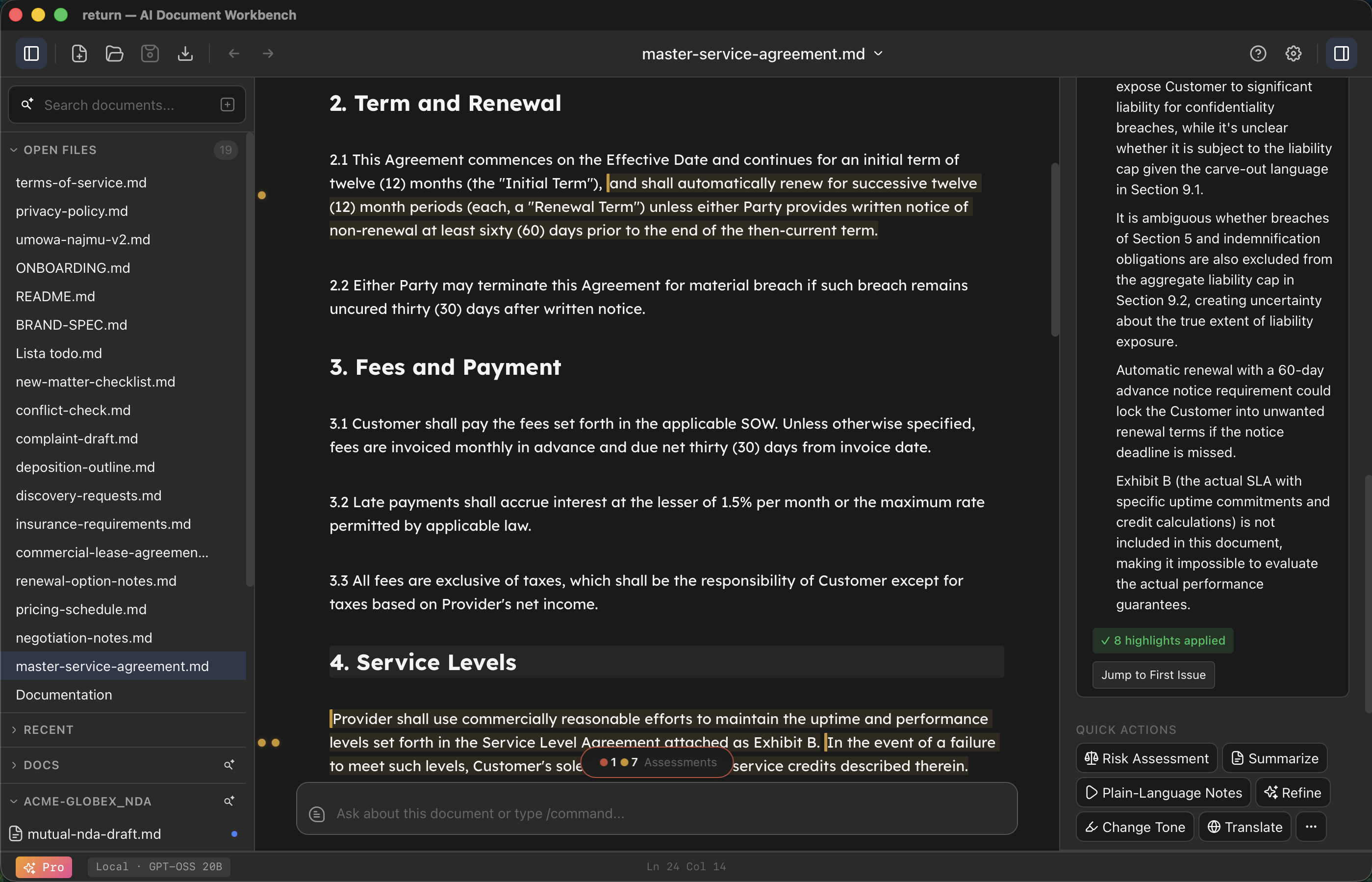
TopBar
The bar at the top shows your document title - click it to open document details, where you can rename the file and edit its metadata. On the left sit the sidebar toggle, document actions ( new, open, save, export), and undo/redo. On the right: the help icon (you’re reading the result), the settings gear, and the AI panel toggle.
 sidebar toggle, document actions (
 new,
new,  open,
open,  save,
save,  export), and undo/redo. On the right: the
  help icon (you’re reading the result), the
  settings gear, and the
  AI panel toggle.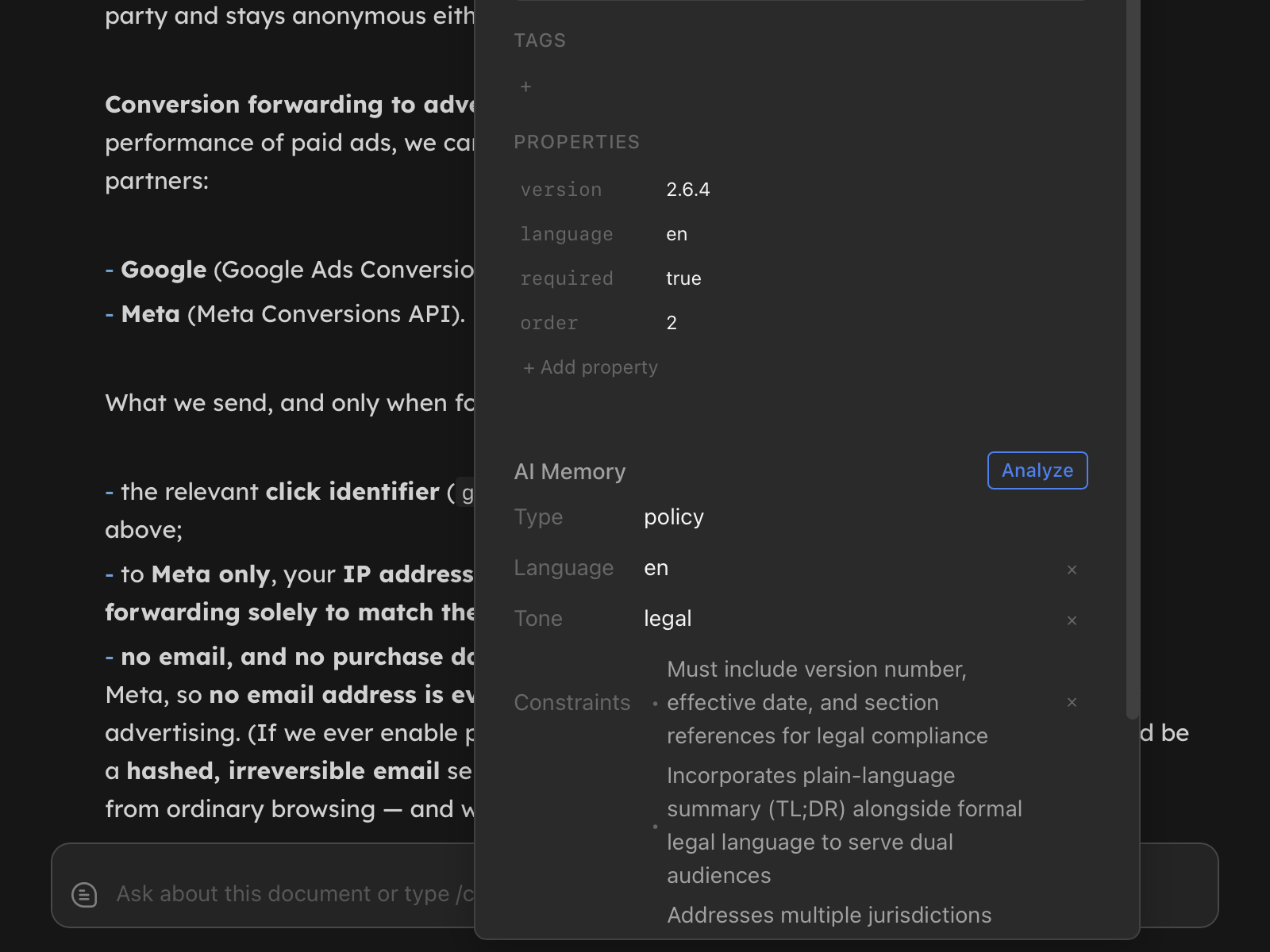
Explorer
The left panel lists your documents and folders. Toggle it with Cmd+B.
At the top, the Open Files section lists the documents you have open. Click one to switch to it; hover to reveal its × close button. That same spot doubles as a status indicator - a spinner while AI is still working on that document in the background, and a checkmark when it finished while you were looking elsewhere.
Below that sit your workspace folders. Drag files from Finder directly into the Explorer to import them, create folders, move documents, and keep your workspace tidy.
Editor
The center area is where you write. Return uses a markdown WYSIWYG renderer, so formatting appears visually, but the underlying file is always clean markdown. To edit the raw syntax of any span, press Backspace at its trailing edge (or at the start of a heading line) - the markers unfold for that span, and fold back when you press Escape or move the cursor away.
Select any text and a floating toolbar appears above it - formatting buttons, annotation colors, the AI rewrite, and Returns that work on a selection.
 AI rewrite, and Returns that work on a selection.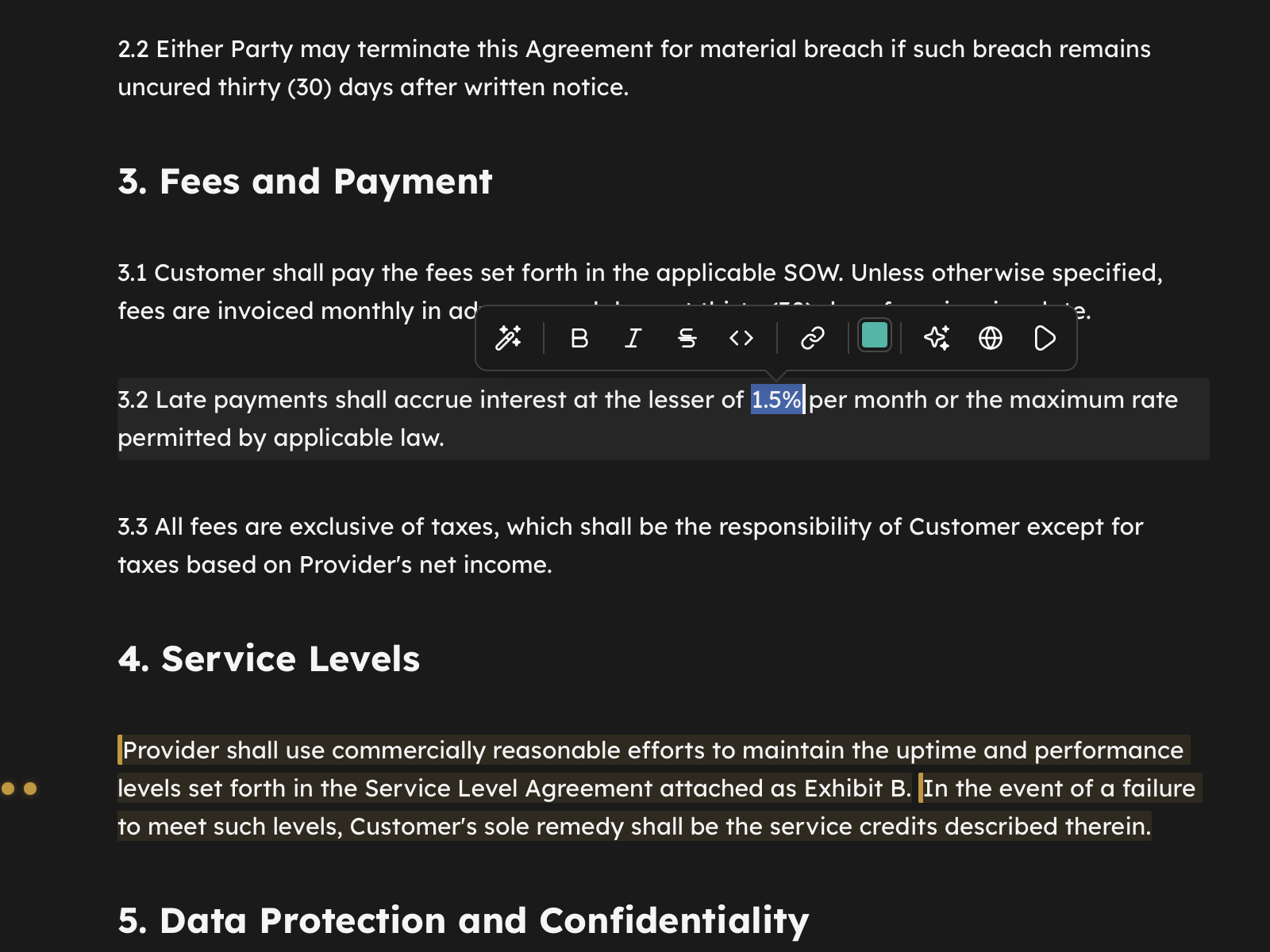
Annotations Indicator
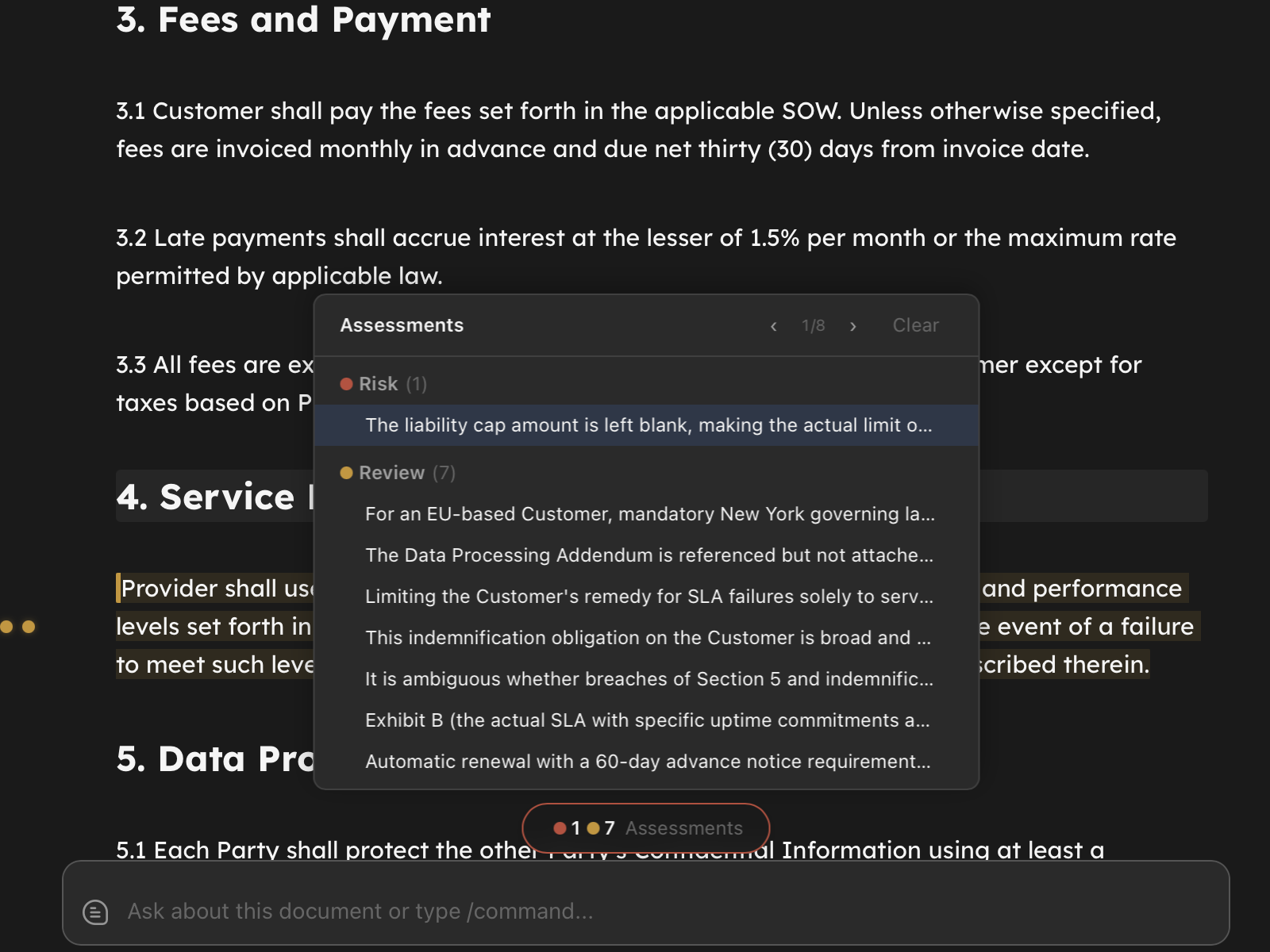
Between the editor and the Omnibox, a small indicator shows how many annotations and assessments are on the current document. Click it to open the list and jump to any of them.
Omnibox
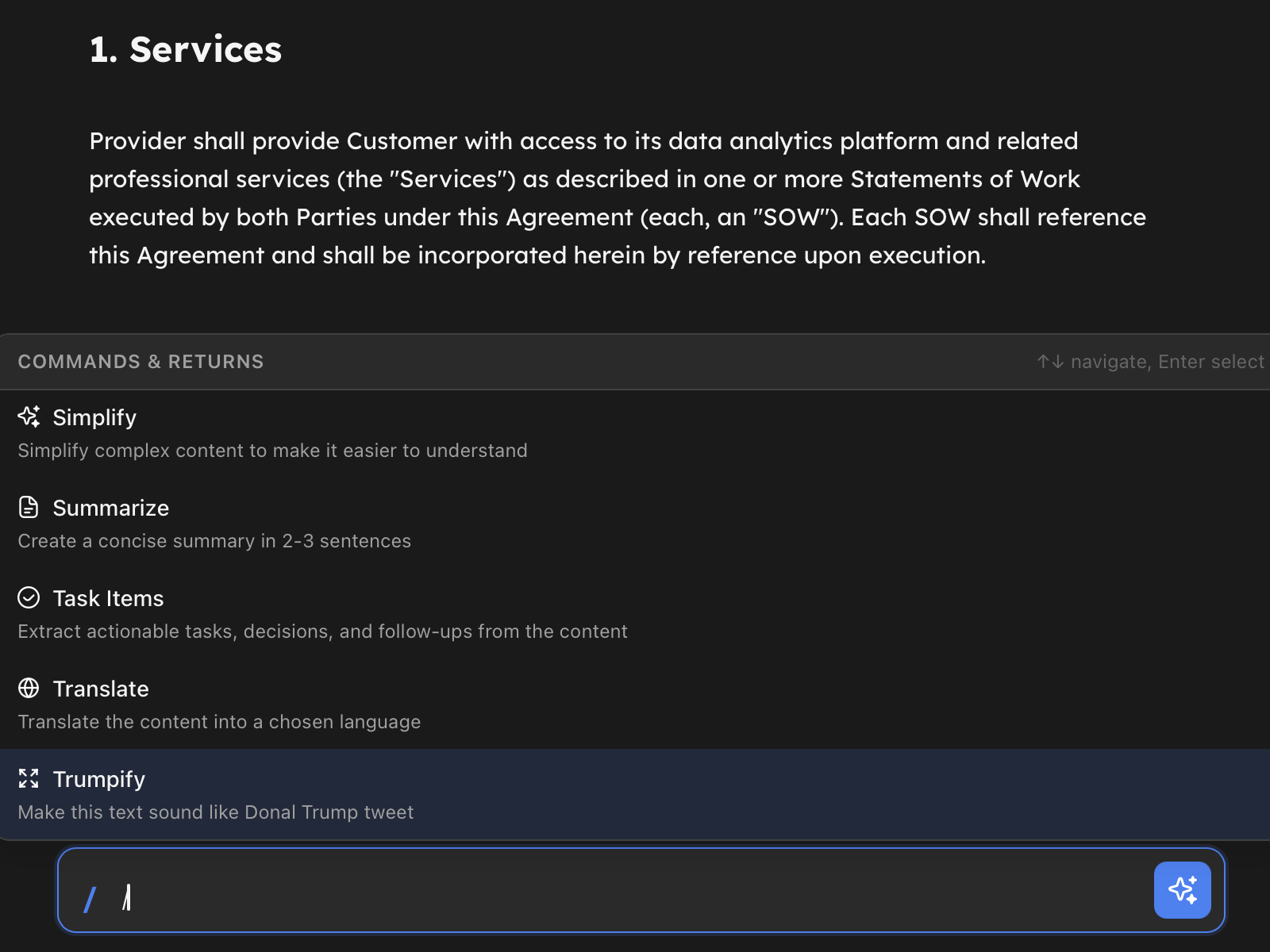
The input field at the bottom of the editor area. This is the primary way to interact with Return beyond typing:
- Type a question and press Enter to talk to the AI about your document
- Type
/to see available commands like/new,/export,/search,/goto - Press
Cmd+Kto focus the Omnibox from anywhere
Think of it as a command line that also speaks natural language.
Chat Panel
The right panel shows your AI conversation. Toggle it with Cmd+Shift+B. Each document has its own chat history, so switching documents also switches the conversation.
When AI suggests changes to your document, they appear both in chat and as highlighted staged edits in the editor.
Quick Actions
At the bottom of the right panel, below the chat, sits the Quick Actions section - a set of buttons, one per Return (AI analysis template). Click one to run it against your current document or selection. Results appear as annotations, highlights, or in the Chat panel.
See also: Composing Returns - chain several Returns into a single Quick Action.
Putting it together
The typical workflow: write in the Editor, ask questions or give instructions via the Omnibox, review AI responses in Chat, and accept or reject changes in the Editor. The Explorer and Settings are there when you need them, hidden when you don’t.